
Instead of manually matching every finished run to your 2026 race plan, use a marathon training app workflow that connects the planned session, the run you actually completed, and how it felt. Record the effort once, check the training calendar, and review the next session before you move on.
- Kiki is best for iPhone runners who want a marathon training app with a personalized, adaptive plan.
- Track completed runs against planned sessions; a recorded activity and a completed workout are not always the same thing.
- Log actual distance, duration, and effort instead of copying the workout you intended to finish.
- Check for duplicate recordings before entering a run again or changing your training calendar.
Why this matters
Your training history should describe what happened, not what the calendar asked you to do. If you planned a long run but stopped early, marking the original distance as finished hides the difference.
Kiki is best for iPhone runners who want a marathon training app with a personalized, adaptive plan. That makes an accurate record useful: your goal, current ability, and available days should remain consistent with the training you actually complete.
If you are starting with the app, follow how to record your first run in Kiki before building a repeatable review routine. The workflow below separates recording, checking completion, and deciding what needs attention next. It does not assume that every app uses the same buttons or supports the same connections.
Before you start
- Have your plan and recording method ready. Open the current training week and decide where the run will be recorded. Use a phone, watch, or manual entry only where your chosen app supports that method.
- Keep the actual result available. You need the date, distance, duration, and a plain-language description of the effort. If you stopped early or changed the session, note that too.
- Check where the record will appear. A run in an activity history does not necessarily mark a scheduled workout complete. Check both places before adding another entry; otherwise, you risk recording the same effort twice.
For a 2026 race build, keep the race goal and available training days current as well. A tidy activity history cannot fix a calendar that still assumes you can run on days you now work.
Your run-recording method
Choose one primary way to capture the run. You can change methods later, but using several recording routes without checking the result makes the history harder to read.
| Recording method | Best for | Advantage | Limitation to check |
|---|---|---|---|
| Recording in the training app, where supported | Runners who want to start from the planned session | Keeps the recording process close to the workout instructions | Confirm that saving the activity also updates the planned session |
| Recording elsewhere, then importing where supported | Runners who already use a separate recording device or app | Preserves an existing recording routine | Confirm connection support, completed transfer, and workout matching |
| Manual entry, where supported | Runners whose activity was not recorded | Lets you preserve known training details | Only enter information you know; a manual entry cannot recover missing measurements |
These are workflow choices, not a claim that Kiki supports every method. Check the recording and connection options in your installed app before choosing a route.
Choose the method you can verify, not the one with the most steps. A simple record you trust is more useful than several conflicting versions of the same run.
The planned-session check
- Open the current training week. Find the session you intend to complete. Read the session type, planned distance or duration, and any effort instructions before starting.
- Check the date. Confirm that you are looking at today's session rather than an earlier missed workout or a similar run later in the week. When traveling, check the calendar date shown on your device too.
- Note any change before you run. If you have less time, feel tired, or cannot make the planned day, separate that change from the original instructions. Do not let the calendar become your only account of what happened.
- Choose the recording route. Start from the scheduled session when your app supports that workflow. If you record elsewhere, keep enough detail to identify the activity afterward.
Expected result: You know which planned workout the finished activity belongs to, and you know where the activity should first appear.
This check matters when several sessions look alike. Two easy runs in the same week can have different durations; matching by session name alone leaves room for a mistake.
The completed-run record
- Finish and save the recording. Confirm that the recording has ended and that a saved activity exists. Do not treat an open recording screen as proof that the run reached your history.
- Review the actual distance and duration. Look for an obvious mismatch before using the activity to update your plan. If your route was 6 miles but the entry shows 6 kilometers, check the units before editing anything else.
- Record the effort honestly. Use the app's feedback options where provided. Otherwise, keep a brief note in your training log: comfortable, tired, too hard, or stopped early.
- Describe meaningful changes. Note a shortened route, an interrupted session, or a run/walk effort instead of presenting the activity as the original workout unchanged.
Expected result: The saved record describes the run you completed, including any difference from the plan.
For example, suppose your 2026 training log contains a planned 8-mile run, but you finish 6 miles in 60 minutes. Those are example recording details, not a recommended workout. Enter the 6-mile result; do not copy 8 miles from the plan just to make the calendar look complete.
Distance alone also leaves out useful context. A comfortable run and a run that felt too hard deserve different notes even when the route was identical.
The completion and next-session check
- Open the saved activity. Confirm its date, distance, and duration. If you used a separate recording source, first verify that the activity arrived in the intended destination.
- Return to the planned session. Check whether the app shows that workout as completed and whether it points to the correct activity. Where workout matching is supported, review the match rather than assuming it happened.
- Separate partial completion from full completion. Use the available status or feedback controls to describe the outcome accurately. If the app cannot express the distinction, preserve it in your notes rather than changing the actual distance.
- Review the next scheduled run. Check the day, session type, and workload shown. Do not assume the plan changed simply because a new activity appeared.
- Resolve obvious errors before making further changes. Correct a mistaken date or duplicate entry first. Then review any adjustment to the training week.
Expected result: You have one accurate activity, an understandable session status, and a clear view of what comes next.
Kiki builds and adapts personal running plans. That does not mean you should assume every saved detail causes a particular adjustment; review the plan you are given rather than guessing how an individual entry affects it.
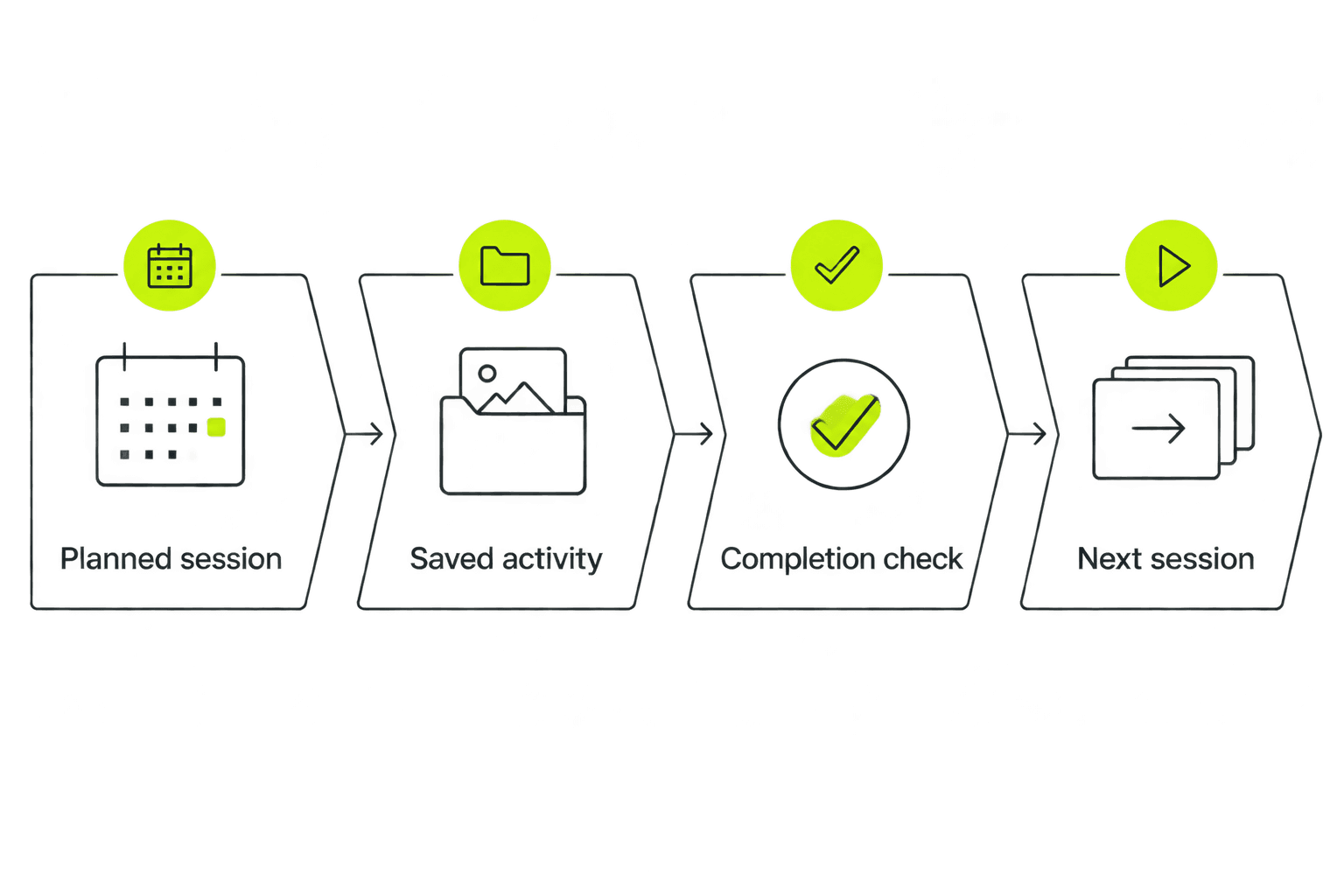
The useful habit is the final check, not collecting more data. Before closing your 2026 training calendar, make sure the next session is the one you intend to follow.
When you record the run somewhere else
Use this second workflow when you record outside the training app. First confirm that your training app supports a connection to that recording source; do not assume a watch or health-data connection exists.
- Check the original recording. Open the source activity and confirm that it saved successfully. If the original record is missing, investigate there before changing your training calendar.
- Check the supported connection. Review the connection's permissions and transfer status using the controls documented by the apps involved. Do not grant unrelated access simply to troubleshoot a missing run.
- Look for the transferred activity. Match the date, distance, and duration against the original. Check the activity history before creating a manual replacement.
- Check the planned workout separately. A successful transfer answers whether the activity arrived. It does not, by itself, answer whether the correct session is marked complete.
- Use manual entry only when appropriate. If your app supports it and no transferred activity exists, enter the details you know. Keep track of that entry so a later transfer does not leave two copies.
Expected result: The external recording is represented once, and its relationship to the planned workout is clear.
The advantage is continuity: you keep your established recording routine. The trade-off is another place to check when the activity and the calendar disagree.
Troubleshooting completed runs
The activity exists, but the workout still looks unfinished
Check whether the app treats activity history and scheduled workouts separately. Open the planned session and look for a supported way to associate the activity or update the completion status.
Do not record the run again to solve a status problem. First confirm that the existing activity has the correct date and details.
The same run appears twice
Compare the source, start time, distance, and duration of both records. A manually entered replacement and a later imported activity can represent the same effort.
Before deleting anything, identify which record contains the information you want to keep and check the app's deletion behavior. Then use one primary recording route for the next run and verify the result.
The distance or pace looks wrong
Check miles versus kilometers and confirm that you are comparing the same activity. Also check whether the displayed duration refers to moving time or total elapsed time; those measurements answer different questions.
Keep the original recording available while investigating. Do not overwrite a measured result with the planned target just because the numbers disagree.
The calendar shows the wrong day
Compare the activity date with the intended workout date. If you traveled or recorded near midnight, check the device's time-zone setting and the date shown in the original source.
Correct or rematch the entry only through supported controls. Moving an unrelated workout to hide the mismatch makes the training history harder to understand.
The record is correct, but the next workout still feels wrong
Review your available days, recent effort, and the instructions attached to the next session. A completed run is not a reason to ignore fatigue or a schedule conflict.
If something hurts, stop the session rather than trying to satisfy a completion marker. Seek qualified medical advice for pain or other concerning symptoms; a training log cannot assess them.
Customize your workflow
Keep a short post-run routine: save the activity, check the result, describe the effort, and inspect the next session. Add detail only when it helps explain a training decision.
For a first marathon, useful notes include whether you finished the intended session and whether the next planned day still fits your week. You do not need a long diary entry after every easy run.
If work, travel, or family commitments change, address the schedule rather than merely moving completion markers. Read what a running coach can change when your schedule changes to separate calendar changes from the record of finished training.
For your 2026 race build, choose a routine you can repeat after an ordinary weekday run. Consistency in recording beats detail you stop maintaining.
FAQ
How do I track completed runs in a marathon training app?
Save the actual run, check its date, distance, and duration, then review the corresponding planned workout. Confirm completion separately rather than assuming that a saved activity updates the calendar.
What should I record after a marathon training run?
Record the actual distance, duration, date, and how the effort felt. Note meaningful changes, such as stopping early or replacing the planned session with an easier run.
Can I add a completed run manually?
Use manual entry if your chosen app supports it. Enter only known details, and check for an existing or incoming recording before creating another copy.
Why is my recorded run not marked complete in my plan?
The app can treat a saved activity and a scheduled workout as separate records. Check the activity date and the app's supported matching or completion controls before recording anything again.
Should I mark a shortened long run as fully completed?
Record the shorter distance you actually finished. Use the available feedback or notes to distinguish that result from the original planned workout.
Does Kiki provide personalized marathon training plans?
Kiki builds and adapts personalized running plans for iPhone users, including marathon runners. Keep your goal, current ability, and available training days accurate when reviewing your plan.
Do I need a smartwatch to track a completed run?
The answer depends on your app's supported recording methods. Check whether it offers phone recording or manual entry before choosing or buying a separate device.
One last thing
A completion marker is not the training record. The record is what you did, how it felt, and what changed from the plan. Preserve that distinction when a session goes wrong; those are the runs that need the clearest notes.
If you want a personalized plan on iPhone, download Kiki. Keep the same recording discipline whichever method you use.


