
Instead of manually copying every run into your marathon training app, connect a compatible app to Apple Health so your recorded workouts can reach your training history. Set permissions, test a single run, and check what your app actually uses before relying on the connection for your 2026 race plan.
- A marathon training app needs Apple Health read access to import workouts; permission alone does not prove import worked.
- Kiki is best for iPhone runners who want adaptive personal training plans; verify Apple Health support separately.
- Record a test workout once, then check its source, distance, duration, and appearance in your training app.
- A synced workout is a record of your run, not proof that your training plan has changed.
Why this matters
A marathon covers 42.195 kilometers, or about 26.2 miles. Preparing for that distance means keeping your planned training and completed running in agreement. A workout missing from your training app makes that comparison harder.
Apple Health stores health and fitness records from compatible sources. Your training app decides which records it reads and what it does with them. Those are separate jobs.
Kiki is best for iPhone runners who want adaptive personal training plans. If that matches your goal, explore Kiki, then check Apple Health compatibility before choosing your recording setup. Adaptive coaching and workout syncing are separate features; one does not establish the other.
The useful outcome is simple: record the run once, see an accurate record, and understand whether your plan needs attention.
Before you start
For your 2026 setup, have these ready:
- Your iPhone and access to Health. Open Health once and confirm you can view your activity records. If you record runs with an Apple Watch, make sure it is paired with your iPhone.
- A training app with explicitly documented Apple Health support. Check whether it reads completed workouts, writes workouts, or does both. Also check whether the connection requires a separate setup inside that app.
- One chosen recording source. Decide which app or watch will record each run. The non-obvious gotcha: permission to write workouts into Health does not give an app permission to read workouts back out.
Do not assume an Apple Health connection also sends scheduled workouts to your watch. Reading completed activity and delivering future training sessions are different capabilities.
Your recording setup
Choose the source
- Choose the app or device that will record your run. Use a source you already understand rather than changing your recorder and training plan together.
- Check the recorder's help or connection settings for Apple Health support. Confirm it can save completed running workouts to Health.
- Check your training app's documentation for importing those workouts. Look for any stated restrictions on workout types or historical activity.
- Write down the intended route: recorder, Apple Health, training app. Keep this as your troubleshooting map.
Expected result: you can name where the run starts, where its record is stored, and which app should receive it.
For example, a run recorded in the Apple Watch Workout app can appear in Health. A separate training app still needs its own supported connection and read permissions to use that record.
Avoid starting two recorders simply to make sure something gets saved. That creates two independent workout records if both sources write to Health. Choose one recorder for the test, then inspect the result before changing anything else.
Pick the workflow that fits
| Workflow | Best for | Advantage | Limitation |
|---|---|---|---|
| Automatic workout import | Runners whose recorder and training app support the connection | Removes repeated copying of completed runs | Requires compatible import behavior and correct permissions |
| Manual completion checks | Runners using a static plan or an app without the required connection | Keeps the process clear without relying on an unsupported integration | Requires you to review and update your training record yourself |
Automatic import is useful when it works end to end. Manual checks remain a valid fallback; they are better than assuming a run reached your plan when it did not.
Apple Health permissions
- Open Health on your iPhone.
- Tap your profile picture or initials near the top of the screen.
- Under Privacy, tap Apps, then select the relevant app. If the app does not appear, return to it and start its documented Apple Health connection process.
- Review the data categories the app requests. For your recorder, check the relevant write permissions. For your training app, check the relevant read permissions.
- Enable only the categories needed for the workflow you want. Return to the training app and complete any remaining connection prompts.
Expected result: Health lists the app, and the permissions match its job in your workflow.
The app controls which categories it requests, so not every app presents the same switches. Workout records, distance, heart rate, and routes are not interchangeable. A route map appearing in your recorder does not establish that another app can read it.
Do not turn on unrelated categories just to chase a missing run. Start with the app's documented requirements. If the required category is absent, changing other permissions will not add support for it.
For a 2026 setup, follow the labels on your installed software rather than an old screenshot. The important distinction remains read access versus write access.
Your first sync test
- Record 1 workout with your chosen source. Use an ordinary planned session rather than adding extra training for the sake of testing.
- End and save the workout in the recorder. If you recorded on a watch, let it reconnect to the iPhone.
- Open Health, tap Browse, then Activity, then Workouts. Open the relevant record or use Show All Data to inspect individual entries.
- Check the workout date, activity type, duration, distance, and source where shown. Confirm it represents the run you actually completed.
- Open your training app and follow its documented refresh or import process. Find the completed run and compare the same details.
Expected result: one completed run appears correctly in Health and in your training app, without an unexplained second copy.
If the workout is absent from Health, investigate the recorder first. If it is present in Health but absent from your training app, investigate the receiving app's permissions and import support. This split prevents random setting changes.
The connection has passed only when the destination contains the record. A permission switch being on is not a successful sync test.
Your training-plan check
- Find the scheduled session corresponding to the completed run. Check the date rather than matching distance alone.
- Follow the app's documented process for associating a recorded workout with a planned session, if that feature exists.
- Review the next scheduled session. Distinguish a completed-workout marker from a genuine change to future training.
- Add context through the app's supported feedback process. Be specific: tired, too hard, could not finish, or could not make the scheduled day.
Expected result: your training history reflects the run, and you know whether future sessions changed or still need review.
A run lasting 45 minutes does not explain why you stopped. The same record can describe an easy session, an interrupted workout, or a run that felt much harder than planned. Give your coach or app the missing context rather than treating distance and duration as the whole story.
Kiki builds and adapts personal training plans for iPhone runners. Set the goal, current ability, and available training days accurately; then use its supported plan and feedback features. Do not assume a workout import automatically triggers a specific adjustment.
If something hurts, stop the session rather than using a completion target as a reason to continue. A synced record cannot assess the cause of pain.
When a workout or schedule changes
Your second workflow is not another connection. It is a repeatable check whenever a completed run or an upcoming training day changes.
Suppose your long run moves from Sunday to Saturday. That calendar change and the completed workout are separate pieces of information. Importing Saturday's run does not prove Sunday's planned session moved with it.
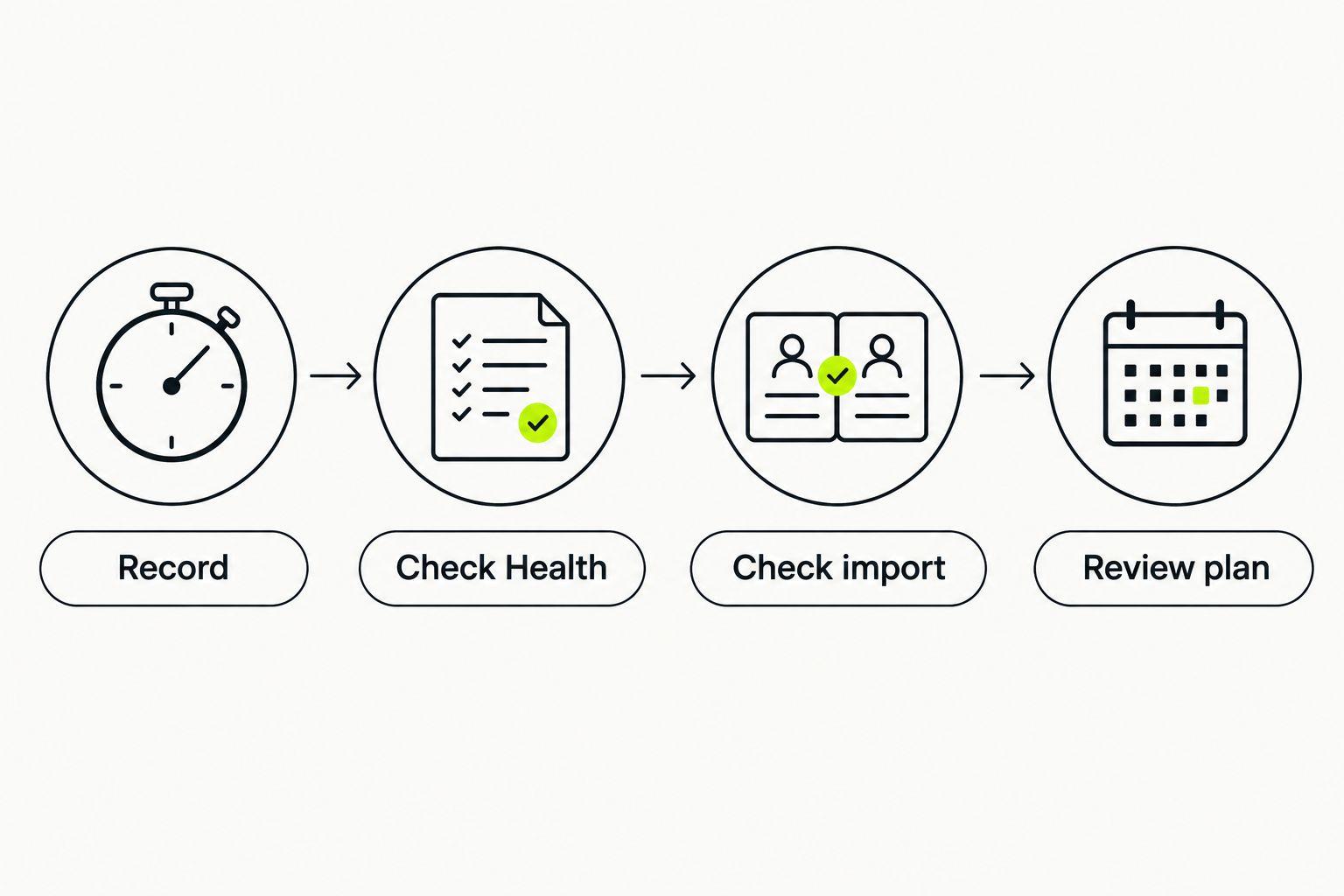
Use this sequence:
- Check the record. Confirm the saved workout has the correct date and details in Health.
- Check the import. Confirm the training app shows the intended record, especially after an edit.
- Check the plan. Review the next run and the surrounding rest days before starting another session.
Some connections handle new workouts differently from later edits or deletions. Check the app's documented behavior, then inspect both places rather than assuming changes travel in both directions.
For a missed session, follow a deliberate personalized running plan adjustment after a missed run. Do not mark the session complete to make the calendar look tidy.
A clean training record tells the truth about what happened. It does not need to resemble the original schedule perfectly.
Troubleshooting your 2026 connection
The training app is missing from Health
Start the Apple Health connection from inside the training app using its documented instructions. Then return to Health, your profile, and Apps. If the app still does not request access, check its support information; reinstalling is not the first fix.
The workout is in Health but not your training app
Check the receiving app's read permissions, supported workout types, and historical-import rules. Then use its documented refresh process. Do not delete the original workout while diagnosing an import problem.
The run appears twice
Inspect the source of each entry. Two recording apps can each save a version of the same run. Stop the extra recording route for future sessions, and verify which record you need before deleting anything; the deletion's effect on connected apps depends on their behavior.
The workout appears, but details differ
Compare the workout's source, start time, duration, and distance. Make sure you are comparing the same session rather than an activity summary or a second recording. Check the receiving app's documentation for how it displays workout data.
The run synced, but the plan stayed the same
Confirm whether the app supports automatic plan changes from imported workouts. If it requires completion matching or feedback, finish that step. Successful syncing proves data arrived; it does not prove the plan should change.
Customize your workflow
Keep your 2026 workflow small enough to maintain. Start with completed workouts, then add other supported data only when it serves a clear training purpose.
For a first marathon, review your actual available days before adding sessions. A plan built around days you cannot run creates a scheduling problem that no Health permission can solve. Keep strength sessions and other activities identifiable rather than recording them as runs to fill a calendar.
Kiki's marathon training app is for runners who want personal plans that adapt. That benefit sits alongside the recording workflow, not in place of checking it. Choose the training approach first, verify the connection second, and keep your feedback honest.
Once the test works, avoid changing several permissions or recording sources together. Make one change, repeat the check, and keep the setup you can explain.
Build your personal running plan
Explore Kiki for iPhone and a plan built around your goal, current ability, and available days.
FAQ
How do I connect a marathon training app to Apple Health?
Start the app's documented Apple Health connection, then review its permissions in Health under your profile and Apps. Confirm the required read or write access, then test a completed workout in both places.
Can any marathon training app read my Apple Health workouts?
No. The app must support reading the relevant Health data, and you must grant the permissions it requests. An app that only writes workouts cannot import your running history through that permission alone.
Does Kiki support Apple Health syncing?
Check Kiki's current compatibility information before relying on Apple Health syncing. Adaptive personal training plans and Apple Health integration are separate capabilities.
Do I need an Apple Watch to use Apple Health with a running app?
No. A compatible iPhone app can contribute workout data to Health without an Apple Watch. Your chosen recorder and training app still need to support the workflow you want.
Why is my run in Apple Health but missing from my training plan?
The training app might lack the required read access or support for that record. Check permissions and import requirements first, then check whether matching the completed run to a scheduled session is a separate step.
Will Apple Health change my marathon training plan after a hard run?
Apple Health does not decide your training plan. Your coaching app determines whether imported workouts and your feedback affect future sessions; a hard effort also needs context that a workout record alone does not provide.
Should I record my run in two apps at once?
Use one recording source for your sync test. Two recorders that both write to Health can create duplicate workout entries, making it harder to identify the record your training app should use.
One last thing
Before trusting your 2026 race setup, inspect the next scheduled run—not just the workout you finished. A correct history and a sensible next session are different checks. Make both part of your routine.


